What are OFX, QFX, QBO (Web Connect) files?
OFX, QFX, QBO files are transactions files use to receive information from financial institutions. QFX and QBO files are essentially OFX files with additional details added as the OFX specification allows formats extensions:
- QFX files are Quicken OFX or Quicken Web Connect files
- QBO files are Quickbooks OFX or Quickbooks Web Connect or Intuit Web Connect files
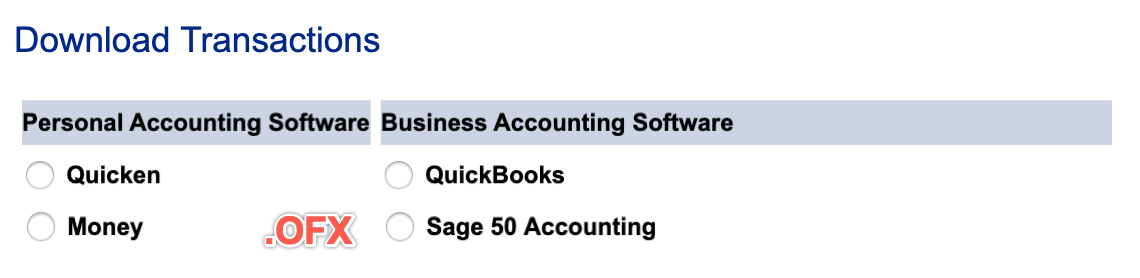
Although you can open QBO, QFX, OFX files in any text editor, there is no easy way to modify these files. However, personal fiance and accounting software love these formats as they provide transaction details in a predefined way unlike CSV or Excel spreadsheet files. If you want to work with files before importing them into accounting software, they need to be converted first to CSV and then converted back from CSV.
Being similar by their OFX specification, you may find your accounting software imports all these three formats as long the software is capable of importing just one kind (OFX, QFX or QBO). However, you may need to convert these files to a specific variant, for example:
- Quicken would import only QFX, but not OFX or QBO
- Quickbooks Desktop would import only QBO, but not OFX or QBO (Quickbooks Online fixed the issue and imports all three)
Some older personal finance and accounting software may prefer another format, QIF (Quicken Interchange format), and you may need to covnert OFX/QFX/QBO files to QIF.
From the export point of view, accounting software and personal finance almost never export in OFX, QFX, QBO formats as these are expected to be responses from online banks and financial institutions, but often export data in the QIF format, so you may have a need to convert exported QIF files to OFX, QFX, QBO format ready to import into Quicken, Quickbooks Desktop, Quickbooks Online or other apps.
Some transformations below you may find useful:
- OFX to QFX
- OFX to QBO
- QFX to QBO
- QBO to QFX
- OFX, QFX, QBO to CSV
- CSV to OFX, QFX, QBO
- QIF/QMTF to OFX, QFX, QBO
- QBO, QFX, OFX to QIF
- PDF to OFX, QFX, QBO
When you convert transactions, follow these simple guidelines:
- Preview Transactions before converting: See the contents of the OFX file before converting. OFX files are not easy to observe through notepad or other text viewing tools, and converters are doing a great job showing you the data as a regular table.
- Easy to convert: Simply load the file, review it and click the Save button to create the QIF file and finish the conversion.
- Select all or less: You can optionally reject some transactions you don’t want to be imported
- Automate: The converter supports the command-line automation.
Let's look at each conversion variant after defining each format.
What is OFX file/format?
An OFX file is a file format used for exchanging financial data. It stands for Open Financial Exchange and is used to transfer financial information between different software programs and online financial institutions. OFX files are commonly used by personal finance and accounting software programs, such as QuickBooks, Quicken, and Microsoft Money, to import and export financial data, such as transactions, account information, and bill payments.
OFX files are based on the SGML (Standard Generalized Markup Language) standard and use XML (Extensible Markup Language) tags to structure the data. This allows the data to be easily read and understood by different software programs and online financial institutions. OFX files typically contain data related to bank and credit card accounts, investments, and other financial transactions.
OFX files can be created and edited using any text editor, but it is generally easier to use a financial software program that supports the OFX file format. To import OFX files into a financial program, the user typically needs to select the "import" or "file" menu option and then select the OFX file they want to import. The program will then parse the OFX file and display the financial data it contains in a format that is easy to understand and work with.
OFX files can also be used to transfer financial data between online financial institutions, such as banks and brokerage firms. In this case, the user typically needs to log into their online account and navigate to the "download" or "export" section. They can then select the data they want to download and specify that it should be exported in the OFX file format. The online institution will then generate an OFX file containing the selected financial data and allow the user to download it to their computer.
What is QFX file/format?
The QFX format is a financial data file format used for importing and exporting financial data, such as transactions and account information. It is an open standard that is supported by many personal finance and accounting software programs.
The QFX format is based on the OFX (Open Financial Exchange) format, which is a widely-used standard for exchanging financial data between institutions and individuals. Like OFX, QFX files are typically used for importing and exporting transactions and account information between financial institutions and personal finance software.
One of the key advantages of the QFX format is that it is an open standard, which means that it is not proprietary to any particular financial institution or software program. This makes it easy for individuals and institutions to exchange financial data with each other, regardless of which software programs they use.
In addition to supporting transactions and account information, QFX files can also include other financial data, such as investment and tax information. This makes the QFX format a useful tool for managing and tracking a wide range of financial information.
To use the QFX format, you will need a personal finance or accounting software program that supports it. Many popular programs, such as Quicken and Microsoft Money, support the QFX format, so you should have no trouble finding a program that can handle your financial data.
QFX files are essentially offline web connect for Quicken.
What is a QBO (web connect) file/format?
A QBO file is a financial data file used by QuickBooks, a popular accounting software program. It is typically used to import or export financial data, such as transactions, account information, and banking records. The file is saved in a special format that can be read by QuickBooks and other financial software programs.
QBO files typically contain a wide range of financial information, including details about transactions, account balances, and bank records. This information is organized in a structured way that allows QuickBooks and other programs to easily import and process the data.
One of the main advantages of using QBO files is that they allow users to easily transfer financial data between different software programs and platforms. For example, a user may download a QBO file from online banking and then import it into another accounting program, such as Microsoft Excel, for further analysis and reporting. This allows users to easily access and manipulate their financial data, regardless of the software they are using. You will need to convert QBO files to required format, like CSV for Excel, QFX or QIF for Quicken.
In addition to transferring financial data between programs, QBO files can also be used to import data from other sources, such as banks and credit card companies. This can help users quickly and easily bring their financial data into QuickBooks, saving time and effort.
What is Web Connect Quicken/Quickbooks?
WebConnect is a feature in QuickBooks that allows users to connect their Quicken or QuickBooks software to their bank or credit card accounts. This allows for easy and secure access to financial information, as well as the ability to download transactions directly into Quicken or QuickBooks.
WebConnect is a convenient tool for businesses that need to manage their finances on the go. With WebConnect, users can access their QuickBooks data from any internet-connected device, giving them the flexibility to work from anywhere. This is especially useful for businesses with multiple locations or employees who work remotely.
Setting up WebConnect is easy. First, users need to ensure that their QuickBooks software is up to date. Then, they can go to the Banking menu in QuickBooks and select the “Add Account” option. From there, they can choose the “WebConnect” option and follow the on-screen instructions to connect their bank or credit card account.
Once WebConnect is set up, users can easily download transactions from their bank or credit card accounts into QuickBooks. This eliminates the need for manual data entry, saving time and reducing the potential for errors. Additionally, WebConnect automatically categorizes transactions based on user-defined rules, making it easy to organize and track expenses.
WebConnect also offers a high level of security. When users connect their accounts to QuickBooks, they are redirected to their bank’s secure website to enter their login credentials. This ensures that sensitive financial information is kept private and secure.
QBO files are essentially offline web connect for QuickBooks.
Convert OFX to QFX
ProperConvert makes converting OFX files to QFX a breeze. Just upload your OFX file, and ProperConvert will convert it to QFX format quickly. This ensures your financial data is compatible with software that supports QFX files, making your accounting tasks simpler and more efficient.
You will need to set INTU.BID and may adjust account ID, bank ID, branch ID and the currency.
Convert OFX to QFX (Web Connect) and import into Quicken
Follow the steps as an example for OFX to QFX conversion and import into Quicken:
- Start the converter and select an OFX file
- Review transactions before converting
- Set INTU.BID value for any allowed bank
- Click the 'Convert' button to create a QFX file
- Switch to Quicken. Click 'File' - 'File Import' - 'Web Connect (.QFX) File' and 'Open'.
- Select 'Create a new account' or 'Link to an existing account'.
- Once the transactions are imported, select 'Accept All'.
If you imported under a new account, you can select and move transactions (cut transactions and paste transactions), use the right-click to select all first and then right click again to select an action to move transactions
As an alternative, you can import into a Proxy account, called 'Import' and then move transactions to another account, which is a good way to import things if you have already an existing account, which is directly downloaded from your bank. So, you don't change things, as they are. If you need to import transactions for the previous month, you don't change anything existing, you just go back, import into a new account, and just move transactions to another account. You can also choose 'Link to an existing account'. This account must be deactivated from direct download because Quicken will not be listed. Click the 'Import' button.
Convert OFX to QBO
Converting OFX files to QBO is easy with ProperConvert. Just upload your OFX file, and ProperConvert will handle the rest. It quickly transforms your OFX data into the QBO format used by QuickBooks, making your financial management smooth and hassle-free.
Similar to QFX files, QBO files require the INTU.BID value and you may adjust account ID, bank ID, branch ID and the currency.
Convert QFX to QBO
With ProperConvert, you can easily convert QFX files to QBO format. This tool simplifies the process, allowing you to import your QFX data into QuickBooks effortlessly. Say goodbye to manual data entry and let ProperConvert streamline your workflow.
You may adjust supplied with QFX INTU.BID value to a new value, as well as change account ID, bank ID, branch ID and the currency.
Convert QBO to QFX
Need to switch your QuickBooks data to Quicken Web Connect format? ProperConvert can help you convert QBO files to QFX. This makes it simple to use your financial data with other software that supports the QFX format, ensuring flexibility in managing your finances.
Similar to QFX to QBO conversion, QBO INTU.BID value can be changed, as well as change account ID, bank ID, branch ID and the currency.
Convert OFX, QFX, QBO to CSV
ProperConvert offers an efficient solution for converting OFX, QFX, and QBO files to CSV format. This feature is perfect for those who need their financial data in a more universal format like CSV, which can be opened in spreadsheet applications for further analysis.
Work with data in Excel or another spreadsheet software.
Convert CSV to OFX, QFX, QBO
ProperConvert also supports converting CSV files to OFX, QFX, and QBO formats. This is ideal for users who have their financial data in CSV format but need to import it into accounting software that requires OFX, QFX, or QBO files. ProperConvert makes this process straightforward and efficient.
Once you have data edited in Excel, convert transactions to OFX, QFX, QBO format ready to import into your accounting software.
Convert QIF/QMTF to OFX, QFX, QBO
Using ProperConvert, you can easily convert QIF files to OFX, QFX, and QBO formats. This flexibility allows you to use your QIF data with various accounting software, ensuring you can manage your finances without compatibility issues.
Moving from older financial apps, look for the export as QIF format should be available. Some apps export as QMTF which is similar to QIF and supported by the ProperConvert app.
Convert QBO, QFX, OFX to QIF
ProperConvert makes it simple to convert QBO, QFX, and OFX files to QIF format. This feature is useful for those who prefer or need to work with QIF files in their financial management software. ProperConvert ensures your data is accurately converted and ready to use.
If you still using never dying, reliable personal finance apps, convert OFX, QFX, QBO files provided by your online banking and convert to compatible QIF format. QIF format covers most transaction details provided by OFX/QFX/QBO.
Convert PDF to OFX/QFX/QBO
If you have just PDF files, ProperConvert simplifies converting PDF files to OFX, QFX, or QBO formats. Upload your PDF, and ProperConvert will extract the financial data and convert it to the format you need. This feature is perfect for digitizing paper statements and making them compatible with various accounting software, saving you time and effort in manual data entry.
Learn More
- QBO - What is QBO (web connect) format
- QFX - What is QFX file/format and how to open it?
- OFX - What Is OFX File Format and How to Open it?
- QIF - What is QIF file/format and how to open it?
- Quicken - How To Import QIF or QFX into Quicken
- QuickBooks - How to import transactions into Quickbooks
- QuickBooks Desktop - How to Import Bank Transactions into QuickBooks Desktop
Related articles
- Convert CSV/Excel to IIF and import into QuickBooks
- Convert CSV/Excel files to OFX and import into Quickbooks Online, Xero, Microsoft Money
- Convert CSV/Excel to QBO and import into QuickBooks
- How to Convert CSV to QFX Quickly and Easily
- Convert CSV/Excel to QIF and import into Quicken, Banktivity, MYOB #quicken
- How to Convert Bank Statement PDF to CSV
- Convert PDF to OFX