Convert CSV/Excel files to OFX and import into Quickbooks Online, Xero, Microsoft Money
If you have a CSV or Excel file with transactions and your accounting software imports only OFX, or it imports CSV but not your specific file, convert to OFX for a better import result.
Try ProperConvert app. It converts CSV/Excel files to OFX format.
Convert transaction files from CSV to OFX format
- ProperConvert extracts transactions from CSV/XLS/XLSX files. It creates OFX files ready to import into Xero, Sage One, or other OFX-compatible software.
- No data entry: convert data you already have to OFX format.
- Smart: ProperConvert understands many layouts. It finds columns like date, amount, and description.
- Easy to use: a few clicks converts all your transactions to OFX format.
- Free trial and support: try before you buy and get full support before and after your order.
- Safe: ProperConvert converts all transactions on your computer.
Convert XLS to OFX Step by Step Guide
To convert XLS to OFX (Excel file to OFX format), you can use the following method.
Prepare your Excel file
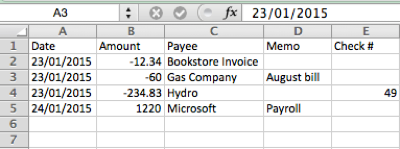
- Open your XLS file in Excel and examine it. If columns do not have headers, add them if possible.
- Use a sample CSV file as a guide for how your spreadsheet should look.
- Select all transactions including the header (or press CTRL+A) and copy to the clipboard (CTRL+C).
Install and start the ProperConvert app
- Download and install ProperConvert. On PC, confirm the file is signed by ProperSoft. On Mac, allow the app from an identified developer.
- Start ProperConvert and click Paste from clipboard.
- Adjust the mapping if needed.
- Check the Transactions tab to confirm dates, amounts, memos, and other columns are correct.
Start ProperConvert and read the welcome message for key points about conversion.
Select your CSV or Excel file. This could be a bank or credit card statement from online banking.
Review transactions before converting. Make sure expenses are negative and payments to the account are positive.
Set account details
Set the account number, bank id, and currency to match your accounting software settings. Some software like Sage and Xero check these values and will not import an OFX file that does not match.
Set the Account ID and Account Type. The Account ID must be digits only. Use the actual account number or any number you choose. Use the same number for all files from the same account. Use a different number for each separate account.
For example, use account id 10000001 for all files from a checking account. For a credit card account, use a different id like 10000002. Keep that id for all files from that credit card account.
Also adjust the Account Type when switching accounts.
The Currency field may also need to match. Some software checks the Bank ID and Branch ID as well.
Set the OFX target to match your software. The converter creates the OFX version that works with your app.
Convert to an OFX file
Check “Open after save” if you want your software to open the OFX file right away. If MS Money is installed, it will open the file.
Click 'Convert.' Confirm the filename and location.
The converter saves the OFX file in the same folder as your CSV/Excel file. If you used copy/paste, you may need to choose a different folder.
Import into MS Money
- Start your software (MS Money) and select File, then Import, Statement file under the main menu and import the OFX file
To import the created OFX file manually in MS Money:
- Click File, Import, Downloaded Statement.
- Select the created OFX file. Click the 'Import' button.
- Import complete.
- Review transactions data.
Import into Sage (Sage 50, Sage One)
- Start your software Sage and import the OFX file
Import created OFX file into QuickBooks Online
- Click 'Banking.'
- Select the account to import into.
- Click 'File Upload.' Look for 'Import a statement' or 'Upload a bank file.'
- Click 'Browse,' select the OFX file, and click 'Next.'
- Select a QuickBooks Online account and click 'Next.'
After import, review and categorize the transactions, then add them to the register.
The Payee field is blank because it shows the Vendor Record, which you select in QuickBooks. It is not pulled from the OFX file.
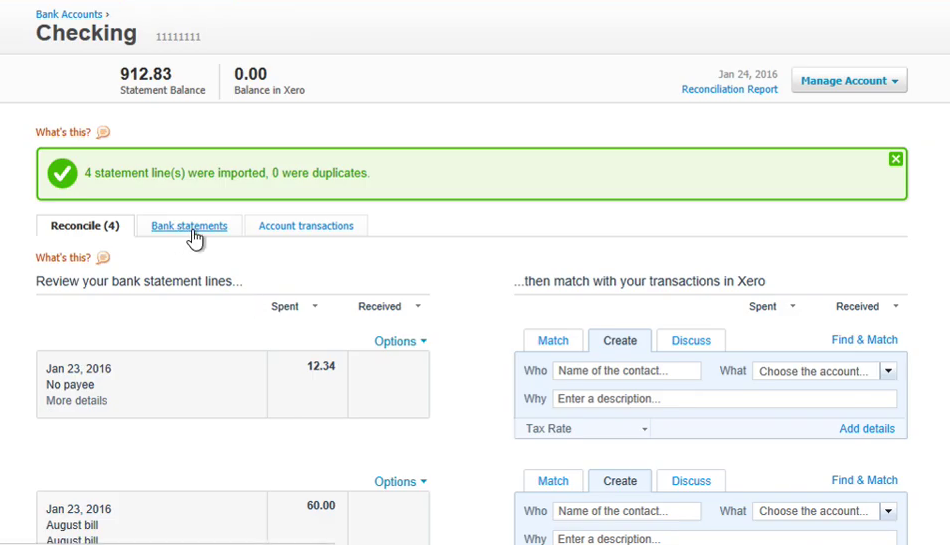
Import created OFX file into Xero
- Click 'Manage Account' and find 'Import a Statement.'
- Click 'Browse' and select the OFX file.
- Click 'Import.'
- After import, review and categorize the transactions.
Learn More
- OFX - What Is OFX File Format and How to Open it?
- QuickBooks - How to import transactions into Quickbooks
Related articles
- Convert CSV/Excel to QBO and import into QuickBooks
- Convert CSV/Excel to QIF and import into Quicken, Banktivity, MYOB #quicken
- What are OFX, QFX, QBO (Web Connect) files?
- How to Convert Bank Statement PDF to CSV
- Convert PDF to OFX
- Convert PDF statements to a QuickBooks-compatible format
- Convert PDF to QIF and import into Quicken Classic, Banktivity, YNAB, MYOB