Convert CSV/Excel to QIF and import into Quicken, Banktivity, MYOB
Do you need to import bank or credit card transactions from a CSV or Excel file into Quicken, Banktivity, or MYOB? Try ProperConvert. It converts your CSV or Excel file to QIF format so those apps can import it.
Convert transaction CSV files to QIF format
- Extract transactions from CSV/Excel/XLSX/XLS files and convert to QIF for your accounting app.
- Review transactions before converting. Apply custom column mappings if needed.
- Easy to use: select your app from the list to create a QIF file that works with it.
- Free trial and support: try before you buy, with full support before and after your order.
- Convert your files on your computer without uploading client data.
How To Convert a CSV File to the QIF Format and Import Into Quicken and Banktivity
The example below shows how to convert a CSV or Excel file to QIF. First, prepare your CSV file. You can use our sample CSV file, open it in Excel, and edit it as needed.
Summary of the steps shown in the video:
Convert CSV to QIF
- Start ProperConvert and select a CSV file.
- The first line must have column names: date, amount, payee, memo, check number, category. Each row must be one transaction.
- Review transactions and adjust the column mapping if needed.
- Set the output type to QIF. Set the account type and the QIF target. Some apps like Quicken 2005-2017 require the account name to match exactly.
- The output date format adjusts based on the QIF target you select.
- Click Convert, confirm the file name, and save.
IMPORTANT: Review transactions before converting. Check that dates are correct, amounts are right, and withdrawals and deposits are in the correct columns. Confirm the check number is assigned. Reassign columns if needed.
Expenses must be negative and payments must be positive. Credit card files may have expenses as positive values. Adjust the CSV mapping if needed. Click "Charges/Withdrawals are positive" if that is the case.
Supported QIF targets:
- Quicken Classic Windows 2018+.
- Quicken for Windows 2017.
- Quicken 2005-2017 for Windows.
- Banktivity.
- Microsoft Money.
- NetSuite.
- MYOB.
- Reckon.
- YNAB.
- Quicken 2007 for Mac.
- Quicken UK.
- AccountEdge.
- Other apps (you may need to set the expected date format).
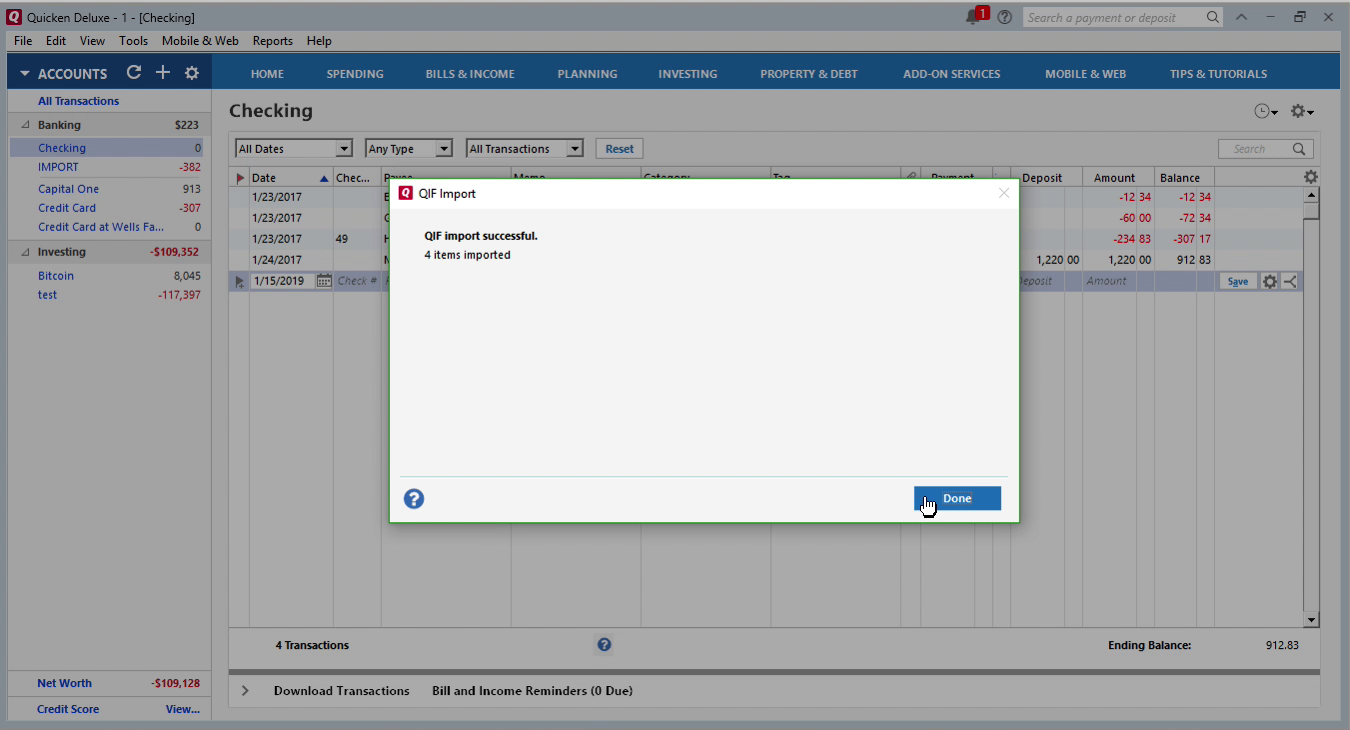
Import Created QIF file into Quicken
With the QIF file ready, switch to Quicken and follow these steps:
- Back up your Quicken data file.
- Click File > File Import > QIF.
- Click Browse and select the QIF file.
- Select an account from the drop-down list.
- Click Import.
- Review the imported transactions.
Import created QIF file into Banktivity
Once the QIF file is ready, switch to Banktivity and follow these steps:
- Back up your Banktivity data file.
- Select File > Import Transactions from the main menu.
- Select Import File and choose the QIF file.
- Select an account to import into and click Continue.
- Review the transactions after import.
Learn More
Related articles
- Convert CSV/Excel files to OFX and import into Quickbooks Online, Xero, Microsoft Money
- How to Convert CSV to QFX Quickly and Easily
- What are OFX, QFX, QBO (Web Connect) files?
- How to Convert Bank Statement PDF to CSV
- Convert PDF to OFX
- Convert PDF to QFX and import into Quicken Classic
- Convert PDF to QIF and import into Quicken Classic, Banktivity, YNAB, MYOB