Convert QIF to QBO and Import into QuickBooks
QuickBooks Desktop does not import QIF files directly. If your bank, credit card company, or accounting software provides transactions in QIF format, you need to convert them to QBO format first.
Use the ProperConvert app to convert QIF to QBO on Windows or macOS.
Convert QIF files to QBO format
- Extracts transactions from QIF files and creates QBO files ready to import into QuickBooks Desktop
- Supports QIF files from banks, credit card companies, investment brokers, and Quicken exports
- Finds transaction details: date, amount, description, check number, memo
- Works on Windows and macOS
- Your files stay on your computer and are not sent anywhere
- Free trial available before purchase
How to convert QIF to QBO
- Step 1: Download and install the ProperConvert app
- Step 2: Start the app and click Browse to open your QIF file
- Step 3: Review the transactions to confirm dates, amounts, and signs are correct
- Step 4: Set the Account ID, Account Type, and INTU.BID value (see notes below)
- Step 5: Click Convert and save the QBO file to your computer
- Step 6: Import the created QBO file into QuickBooks Desktop
QBO settings explained
Before converting, you need to set three values in ProperConvert:
Account ID must be digits only. Use your actual account number or any number you choose. Use the same Account ID each time you convert files for the same account. Use a different Account ID for each separate account.
Account Type must match the account in QuickBooks you plan to import into. QuickBooks only allows a QBO file created for a checking account to import into a checking account, and a QBO file for a credit card to import into a credit card account.
INTU.BID is the bank label shown during the QBO import in QuickBooks. Search for your bank in the lookup list. Make sure the bank you select supports your Account Type. If your bank is not listed, use the default value (3000 - Wells Fargo) - QuickBooks accepts it.
Currency should be USD for the QuickBooks US edition even for non-USD accounts. For the Canadian edition, use USD or CAD. For the UK edition, use GBP.
Import QBO file into QuickBooks Desktop on Windows
Before importing, make sure the account in QuickBooks is not connected to online banking. If it shows a yellow icon in the Chart of Accounts, you need to disconnect it first: right-click the account, choose Edit Account, click Bank Feed Settings, and select Deactivate All Online Services.
To import:
- Click File > Utilities > Import > Web Connect Files
- Select the QBO file you created
- Choose an existing account to import into
- Click Continue
- Review the transactions, assign vendor records and accounts, then add them to the register
Import QBO file into QuickBooks Desktop on macOS
Before importing, make sure the account is not connected to online services. If it shows a blue ball icon in the Chart of Accounts, right-click the account, choose Edit Account, click Online Settings, and set it to Not Enabled.
To import:
- Click File > Import > From Web Connect
- Select the QBO file you created
- Choose an existing account to import into
- Click Continue
- Review and accept the imported transactions
Supported account types
- Bank (Checking, Savings, Credit Line)
- Credit Card
- Investment
What is a QIF file?
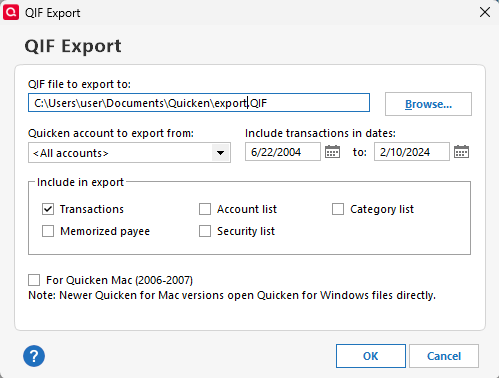
QIF (Quicken Interchange Format) is an older file format for financial transactions. Banks, credit card companies, and personal finance software like Quicken use it to export transaction data. QuickBooks Desktop cannot import QIF files directly, which is why a conversion to QBO is needed.
Can I convert QIF to QBO for QuickBooks Online?
QuickBooks Online does not support QBO file imports from outside sources. It only accepts CSV files through its bank upload feature. If you need to get QIF transactions into QuickBooks Online, convert the QIF file to CSV using ProperConvert and upload that CSV file through the QuickBooks Online banking section.
Learn More
- QBO - What is QBO (web connect) format
- QIF - What is QIF file/format and how to open it?
- Quicken - How To Import QIF or QFX into Quicken
- QuickBooks - How to import transactions into Quickbooks
- QuickBooks Desktop - How to Import Bank Transactions into QuickBooks Desktop
Related articles
- Convert CSV/Excel to IIF and import into QuickBooks
- Convert CSV/Excel files to OFX and import into Quickbooks Online, Xero, Microsoft Money
- Convert CSV/Excel to QBO and import into QuickBooks
- How to Convert CSV to QFX Quickly and Easily
- Convert CSV/Excel to QIF and import into Quicken, Banktivity, MYOB #quicken
- What are OFX, QFX, QBO (Web Connect) files?
- How to Convert Bank Statement PDF to CSV