Convert CSV/Excel to QBO and import into QuickBooks
To convert a CSV file to a QBO file, use a conversion tool like ProperConvert. Download and install it on your computer. Open your CSV file and follow the steps to save it as a QBO file.
Note that not all CSV files convert successfully. The file needs at least a date column and an amount column. If you are not sure, check with the converter's support team.
Convert transaction CSV/Excel files to QBO format
- ProperConvert (CSV2QBO) extracts transactions data from CSV/Excel/XLS/XLSX files. It creates QBO files ready to import into QuickBooks.
- No data entry: convert data you already have in bank or credit card transactions data file format to the QBO format
- Smart: ProperConvert (CSV2QBO) understands many layouts. It finds columns like date, amount, description, etc. of your transactions data.
- Easy to use: Converting your banking transactions data into QBO files could not be any easier. In a few clicks, you will have all your transactions data converted to importable by QuickBooks format in no time at all.
- Free trial and support: try it for Free before you buy and receive full support before and after you order.
- Safe to use: ProperConvert (CSV2QBO) converts all your banking transactions data on your computer.
Why convert CSV to QBO
Banks and credit card companies let you download transactions as CSV files. QuickBooks Desktop does not import CSV files directly in the banking section. It requires QBO (Web Connect) format instead. Converting your CSV to QBO lets you import transactions into QuickBooks without manual data entry.
Common reasons to convert CSV to QBO:
- Your bank provides transaction downloads only as CSV, not as QBO or OFX
- You exported transactions from PayPal, Stripe, or another payment service and need them in QuickBooks
- You have transaction data in Excel and want to add it to a QuickBooks account
- You need to import historical transactions that are no longer available as a direct bank download
What are CSV and QBO formats
CSV (comma-separated values) is a plain text file with one transaction per row and columns for date, amount, description, and other fields. Every bank and payment service uses its own column names and layout, so no two CSV files look exactly the same.
QBO is the Web Connect format that QuickBooks Desktop uses to import bank transactions. It has a fixed structure that QuickBooks expects, which is why a CSV file cannot be imported directly - the columns and format do not match what QuickBooks reads.
Step by step instructions to convert CSV to QBO
Start the converter app and open a CSV/Excel file.
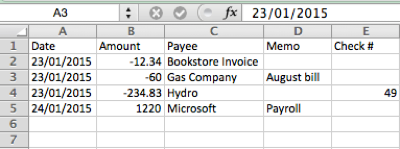
The CSV file has the date, amount, payee, memo, check number. In most cases, you just need to click the 'Convert' button. You still have to review transactions data to see how the converter understood your file and you have all controls to convert your file successfully.
Check if amounts are negative for expenses and positive for deposits (payments to the account). Use the "Change +/-" button once per file to revert the sign of amounts. It applies to both bank (checking/savings) and credit card accounts: expenses must be negative, payments to the account must be positive.
CSV column mapping
Different CSV files use different column names. A PayPal export uses different headers than a bank export. ProperConvert detects the columns automatically in most cases. If your CSV has unusual column names or splits amounts into separate debit and credit columns, use the manual mapping option to tell the app which column contains which value. Once mapped, the app remembers the layout for the next file from the same source.
Set Output QBO format attributes
Converting to QBO format requires the following QBO attributes:
- Account ID (use the same number when you convert for one Quickbooks account and different numbers when you have more than one account)
- Account Type (bank or credit card)
- Currency (must be USD for Quickbooks Desktop US edition)
- INTU.BID value (must be for allowed bank label, use any allowed value if your bank is not listed or not allowed)
Import created QBO file in Quickbooks Desktop
Before importing any file in Quickbooks, backup your Quickbooks company data file.
To import a QBO file in Quickbooks, double click the QBO file and Quickbooks should import it.
If you have multiple Quickbooks versions or multiple company files, start the right Quickbooks version, open a correct company file, do backup and then select File, Utilities, Import, Web Connect (QBO).
Before importing a QBO file, check the chart of accounts. The account you need to import into does not have the yellow strike icon because if you have the icon, it means the account is online linked to direct download. You need to disconnect first to import a QBO file. This is a QuickBooks requirement, not a converter requirement.
To disconnect, click 'Edit Account', then 'Bank Settings', and then 'Deactivate'. Check there is no yellow icon after the change.
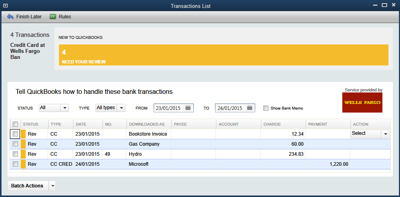
To import a QBO file, go 'File' - 'Utilities' - 'Import' - 'Web Connect file'. Then select a QBO file. Then select an existing account, and click 'Continue'. Now the data is imported. Where this data is?
It is under Bank Feeds. Imported statements show up here and review transactions data. You have to select the payee from your QuickBooks vendor records. When you choose a vendor record for payee from the QBO file (column "Downloaded As"), QuickBooks will remember your choice for the next QBO import.
Then you mark all transactions data, select expense accounts, select payee and approve, and that's it. The rename rule creation dialog will show up after using it for the next time.
Can I import a CSV file into QuickBooks Online?
QuickBooks Online imports CSV, QBO, QFX, and OFX files through the Banking section using the Upload button. However, not all formats carry the same data. When you upload a CSV, QuickBooks Online reads only the date, amount, and description. When you upload an OFX, QBO, or QFX file, QuickBooks Online also reads the payee, memo, and check number, and uses the transaction ID to skip transactions that were already imported.
For that reason, converting your CSV to OFX format before uploading gives better results in QuickBooks Online than uploading the CSV directly. Use ProperConvert to convert your CSV to OFX, then upload the OFX file through the QuickBooks Online Banking section.
Frequently asked questions
Can any CSV file be converted to QBO? Most bank and credit card CSV files can be converted. The file needs at least a date column and an amount column. Files that combine deposits and withdrawals in separate columns, or use unusual date formats, may need manual column mapping before converting.
Do I need to match the bank name in the QBO file to my actual bank? No. The INTU.BID value in the QBO file sets the bank label QuickBooks shows during import. It does not need to match your real bank. If your bank is not in the list, use any allowed value. The transactions will import correctly regardless.
Why does QuickBooks show a yellow icon on my account before importing? The yellow icon means the account is connected to online banking (direct download). QuickBooks does not allow QBO file imports into a connected account. You need to disconnect the account from online services first, then import the QBO file.
How is a QBO file different from an OFX file? QBO and OFX use the same base format. QBO files include an extra field (INTU.BID) that QuickBooks uses to identify the bank. For most purposes they are interchangeable, but QuickBooks Desktop expects the QBO variant for Web Connect imports.
Learn More
- QBO - What is QBO (web connect) format
- QFX - What is QFX file/format and how to open it?
- OFX - What Is OFX File Format and How to Open it?
- QuickBooks - How to import transactions into Quickbooks
- QuickBooks Desktop - How to Import Bank Transactions into QuickBooks Desktop
Related articles
- Convert CSV/Excel to IIF and import into QuickBooks
- Convert CSV/Excel files to OFX and import into Quickbooks Online, Xero, Microsoft Money
- What are OFX, QFX, QBO (Web Connect) files?
- How to Convert Bank Statement PDF to CSV
- Convert PDF to OFX
- Convert PDF statements to a QuickBooks-compatible format
- How to Convert QFX to CSV or Excel