Convert QFX to CSV or Excel
Excel and other spreadsheet apps can't open a QFX file as a table. Convert it to CSV or Excel first, then sort, filter or import the transactions. Read the full CSV/Excel guide.

What is a QFX file
QFX is OFX with extra fields for Quicken, so the date, amount, payee, memo and transaction ID all carry over. Sometimes renaming a .qfx file to .qbo is enough for QuickBooks to accept it. Convert when that fails, or when you need to change the account details inside the file.
What is a CSV or Excel file
CSV is a plain text table with one transaction per row, and Excel (XLS or XLSX) is a spreadsheet file. Neither has fixed columns, so you can sort, filter and edit the data, or import it into an app that accepts a table.
Why convert QFX to CSV or Excel
QFX is OFX with extra fields for Quicken, so other apps may refuse it. A CSV or Excel file gives you the same transactions as a plain table, so you can sort, filter and review them, or import them into an app that accepts a table.
Before you convert: choose where the file goes
For a plain table in Excel or Google Sheets, regular CSV or Excel is all you need. If the file will go into an accounting app, use that app's CSV target, and back up your accounting data before you import it.
Step by step: convert QFX to CSV
- Download, install and start ProperConvert. The trial is free.
- Open your QFX file.
- Review the transactions to see how the app read your file. Check that the dates are correct, and that expenses are negative and deposits (payments to the account) are positive. The "Change +/-" button reverses the signs for the whole file, for bank and credit card accounts alike.
- Set the CSV settings below.
- Click Convert, then confirm the file name and location.
Set the CSV or Excel output settings
The CSV target sets the columns and file type:
- Regular CSV, or Excel XLSX/XLS: all details.
- QuickBooks Online CSV: date, description, amount.
- Xero CSV: date, description, amount, payee, reference, check number.
- Quicken for Mac (CSV Mint): date, amount, description.
- Clipboard: all details, no file saved. Paste directly into Excel.
You can also choose the date format and the decimal separator (dot or comma). See all CSV settings.
Open the file in Excel
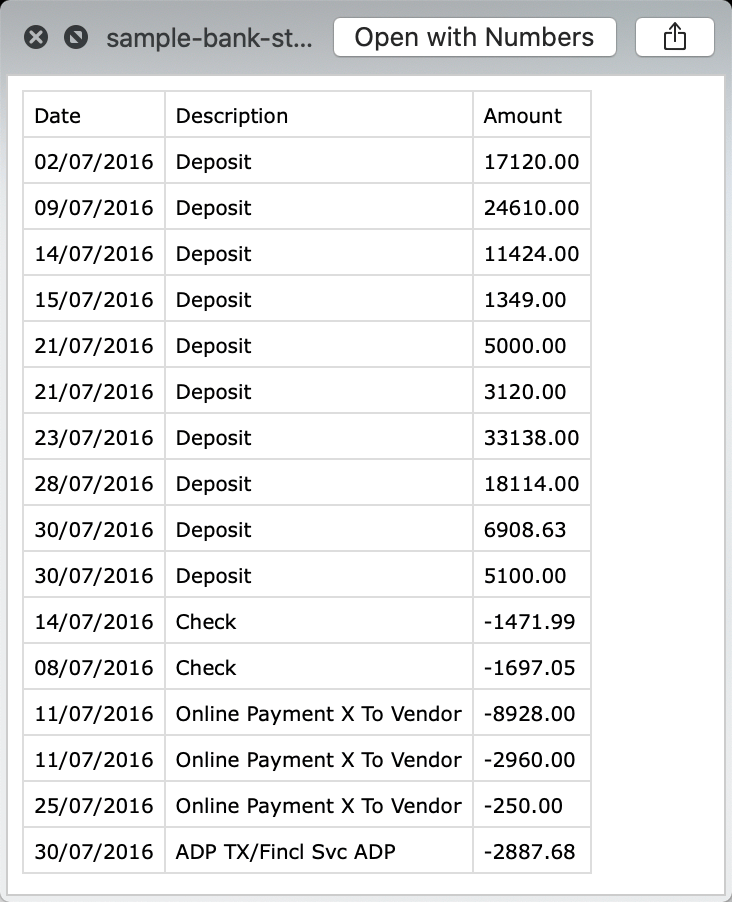
Open the CSV or Excel file in Excel, Google Sheets or another spreadsheet app, or check "Open after conversion" to open it right away. Check that the dates and decimal marks came through correctly before you save, because spreadsheet auto-formatting can change them. See the CSV/Excel guide for more.
CSV and Excel questions
Can I set the output date format?
Yes. Choose the date order required by the destination, such as MM/DD/YYYY, DD/MM/YYYY, or YYYY-MM-DD. Use four-digit years so spreadsheet software does not infer the wrong century or year.
Can I set the decimal separator?
Yes. Use a point or comma according to the destination and regional settings. The field delimiter must remain unambiguous; a comma-decimal CSV commonly uses a semicolon as its delimiter.
Does the CSV open in Microsoft Excel?
Yes. Excel opens CSV files directly. Confirm that Excel interpreted dates and decimal marks correctly before saving, because spreadsheet auto-formatting can change them.
Does the CSV work with Google Sheets?
Yes. Import the CSV into Google Sheets and select the locale and separator that match the file. Review dates and amounts after import before sharing or exporting it again.
Should debit and credit be one column or two?
Use one signed Amount column for a compact, general-purpose file. Use separate Debit and Credit columns when the accounting application or existing spreadsheet template requires them.