Import PDF into QuickBooks Desktop: convert PDF to QBO
QuickBooks Desktop imports QBO and IIF files. Convert your PDF file to QBO first, then import it. Read the full QuickBooks Desktop import guide.
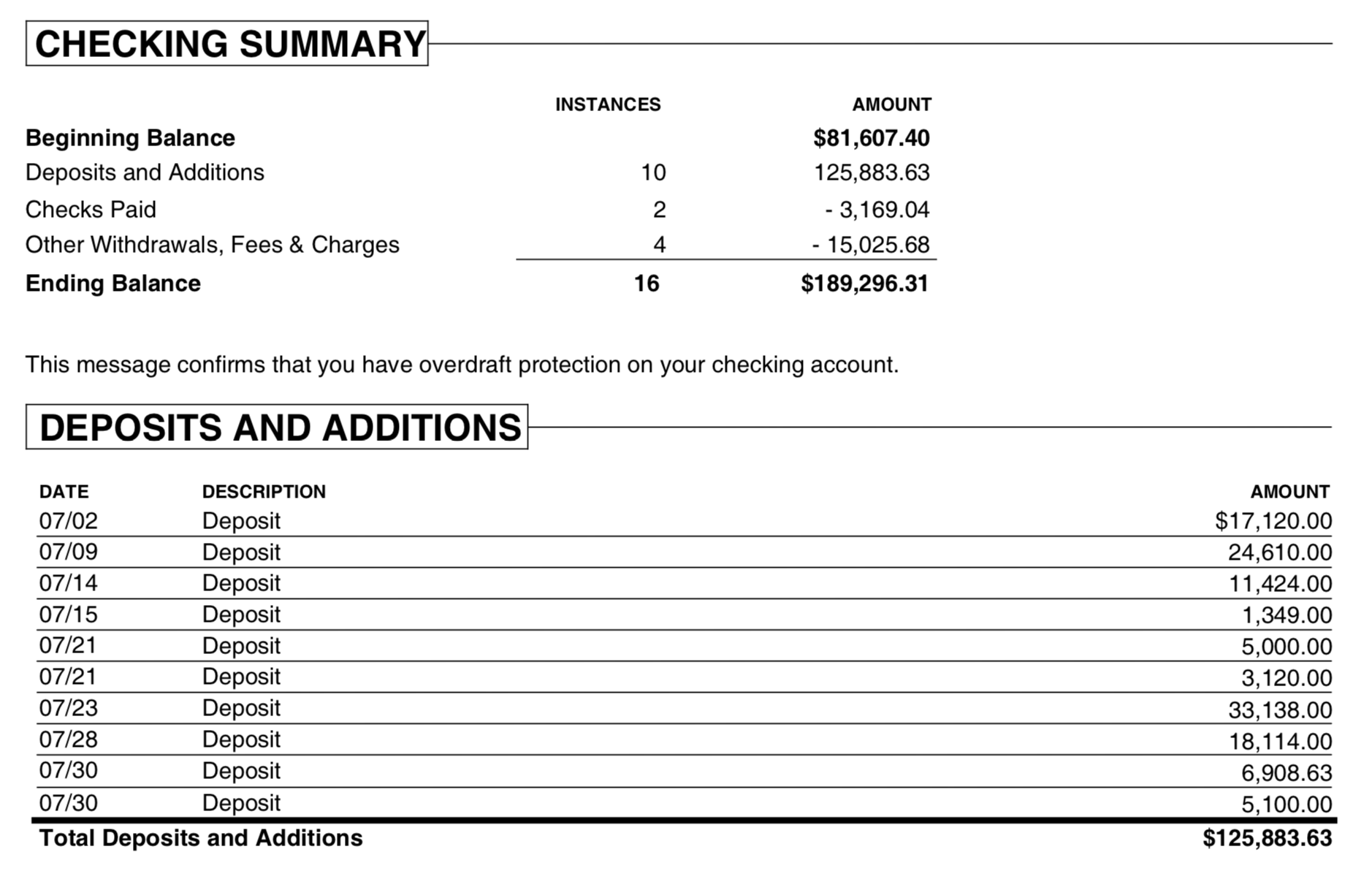
What is a PDF statement
A PDF shows transactions for reading, not for importing, so every row has to be extracted from the page layout. Before you convert, check that rows split across two pages are complete, that statements crossing a new year have the right year, and that the total matches the closing balance. A scanned statement is read with OCR, so check its amounts more closely.
What is a QBO file
QBO is the Web Connect format that QuickBooks Desktop uses to import bank transactions. It has a fixed structure that QuickBooks expects, with fields for the date, amount, payee, memo, check number and a transaction ID. More about QBO.
Why convert PDF to QBO
A PDF shows a statement to people, but accounting apps can't read its table of transactions. QuickBooks Desktop imports bank transactions as QBO (Web Connect).
Before you import: back up QuickBooks
Back up your QuickBooks company file before you import any file, so you can restore it if something comes in wrong. On Windows, click File > Back Up Company > Create Local Backup. On a Mac, click File > Back Up, then Start Backup.
Step by step: convert PDF to QBO
- Download, install and start ProperConvert. The trial is free.
- Open your PDF file.
- Review the transactions to see how the app read your file. Check that the dates are correct, and that expenses are negative and deposits (payments to the account) are positive. The "Change +/-" button reverses the signs for the whole file, for bank and credit card accounts alike.
- Set the QBO settings below.
- Click Convert, then confirm the file name and location.
Set the QBO output settings
In the QBO/QFX/OFX tab on the right sidebar, set the file type to QBO, then set:
- Account ID: digits only. Use the same ID for every file of one account and a different ID for each account. The real account number is the easiest choice. See QBO files for multiple accounts.
- Account type: checking, savings or credit card. It must match the account you import into.
- Currency: must be USD for the QuickBooks Desktop US edition, USD or CAD for the Canadian edition.
- INTU.BID: must be a bank label QuickBooks allows for this account type. Click Lookup to pick one, or use any allowed value if your bank isn't listed. See INTU.BID.
QBO has no expense or income account. You assign those in QuickBooks after the import. See all QBO settings and the QBO format.
Import the QBO file into QuickBooks Desktop
QuickBooks imports QBO files only in versions up to about three years old. For an older version, use IIF.
On Windows:
- If the account shows a lightning bolt icon in the Chart of Accounts, it is connected to online banking. Right-click it, choose Edit Account, click Bank Feed Settings, and choose Deactivate All Online Services.
- Click File > Utilities > Import > Web Connect Files and open the QBO file.
- Select Use an existing QuickBooks account, choose the account, and click Continue.
- Open Banking > Bank Feeds > Bank Feeds Center, choose a payee and an expense or income account for each transaction, and click Add/Approve.
On a Mac, turn off the account's online settings, click File > Import > From Web Connect, choose the account, then match each transaction and add it.
Importing the same period twice can create duplicates. If QuickBooks shows an error, see QuickBooks import errors.
QuickBooks Desktop QBO questions
Do I need to match the bank name in the QBO file to my actual bank?
No. The INTU.BID value in the QBO file sets the bank label QuickBooks shows during import. It does not need to match your real bank. If your bank is not in the list, use any allowed value. The transactions will import correctly regardless.
Why does QuickBooks show a yellow icon on my account before importing?
The yellow icon means the account is connected to online banking (direct download). QuickBooks does not allow QBO file imports into a connected account. You need to disconnect the account from online services first, then import the QBO file.
How is a QBO file different from an OFX file?
QBO and OFX use the same base format. QBO files include an extra field (INTU.BID) that QuickBooks uses to identify the bank. For most purposes they are interchangeable, but QuickBooks Desktop expects the QBO variant for Web Connect imports.
Why does QuickBooks say my bank does not support Web Connect?
The bank ID in the QBO file is not one QuickBooks recognizes. A converter sets the bank ID from its own list. Choose a listed bank, or use an ID that QuickBooks accepted before.
Why did QuickBooks create a new account instead of using mine?
The account ID in the file does not match the ID QuickBooks stored for the existing account. Use the same account ID as the last successful import, or connect the file to the existing account when QuickBooks asks.
Why are transactions missing or doubled after import?
QuickBooks skips rows whose transaction ID it has seen before. Missing rows usually mean repeated IDs in the file. Doubled rows usually mean a statement that was already imported with different IDs. Both are fixed by importing each period once, with IDs that stay the same for the same transaction.
Related QuickBooks Desktop conversions
- Import PDF into QuickBooks Desktop: convert PDF to IIF
- Import CSV or Excel into QuickBooks Desktop: convert CSV or Excel to QBO
- Import OFX into QuickBooks Desktop: convert OFX to QBO
- Import QFX into QuickBooks Desktop: convert QFX to QBO
- Import QIF into QuickBooks Desktop: convert QIF to QBO
- Import MT940 into QuickBooks Desktop: convert MT940 to QBO