Import CSV or Excel into Quicken: convert CSV or Excel to CSV
Quicken imports QFX, QIF and CSV files, but a CSV only in its own column layout. Convert your file to that layout first, then import it. Read the full Quicken import guide.
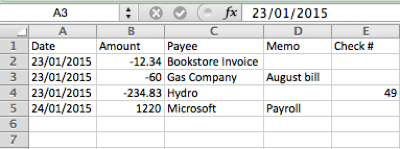
What is a CSV file
CSV (comma-separated values) is a plain text file with one transaction per row and columns for date, amount, description and other fields. Every bank and payment service uses its own column names and layout, so no two CSV files look exactly the same. An Excel file (XLS or XLSX) works the same way here.
CSV column mapping
Different CSV files use different column names. A PayPal export uses different headers than a bank export. ProperConvert detects the columns automatically in most cases. If your CSV has unusual column names or splits amounts into separate debit and credit columns, use the manual mapping option to tell the app which column contains which value. Once mapped, the app remembers the layout for the next file from the same source. See CSV column mapping.
Can any CSV file be converted?
Most bank and credit card CSV files can be converted. The file needs at least a date column and an amount column. Files that put deposits and withdrawals in separate columns, or use unusual date formats, may need manual column mapping before converting. Remove any summary rows above or below the transactions.
What is a Quicken CSV file
A CSV file is a plain text table with one transaction per row. Quicken doesn't read just any CSV: Quicken for Windows and Quicken for Mac each need their own column layout, so a CSV written for one doesn't work in the other. Quicken for Windows reads date, payee, amount, category, account, tag, memo and check number. Quicken for Mac reads the CSV Mint layout, which has a category but no subcategory.
Why convert CSV or Excel to a Quicken CSV
A bank's CSV or an Excel file has its own columns, and Quicken refuses or misreads a file that doesn't follow its layout. Converting lets you map your columns once and save them in the order Quicken expects. A CSV file is also the choice when you want categories to come along with the transactions. It has no transaction IDs, so import each period only once.
Before you import: back up Quicken
Back up your Quicken data file before you import any file, so you can restore it if the transactions come in wrong.
Step by step: convert CSV or Excel to CSV
- Download, install and start ProperConvert. The trial is free.
- Open your CSV or Excel file.
- Review the transactions to see how the app read your file. Check that the dates are correct, and that expenses are negative and deposits (payments to the account) are positive. The "Change +/-" button reverses the signs for the whole file, for bank and credit card accounts alike.
- Set the CSV settings below.
- Click Convert, then confirm the file name and location.
Set the CSV output settings
The CSV target must match your Quicken. In the CSV tab on the right sidebar, select:
- Quicken Windows (CSV): current Quicken Classic for Windows, US and Canada editions.
- Quicken Mac (CSV Mint): Quicken 2015 and later for Mac.
Then check that the date column is correct and that money out is negative. See all CSV settings.
Import the CSV file into Quicken
In Quicken Classic for Windows:
- Click File > File Import > Banking Transactions > From (.CSV) File and select the file.
- Review the imported transactions in the register.
In Quicken for Mac, import the CSV Mint file. It always goes into a new account, so afterward:
- Select the transactions in the new account.
- Drag them onto the account you want in the sidebar.
- Delete the temporary account.
See the Quicken import guide for the full Windows column layout.
Quicken CSV questions
Which CSV target do I select for Quicken?
Quicken Windows (CSV) for Quicken Classic for Windows, and Quicken Mac (CSV Mint) for Quicken for Mac. The two layouts are different, so a file made for one doesn't work in the other.
Does a CSV import check for duplicates?
No. In Quicken for Windows every row is added, so importing the same file twice doubles the transactions. Import each period once.
Does a CSV file bring categories into Quicken?
Yes. The Windows layout has categories, subcategories (Category:Subcategory) and tags. CSV Mint has a category but no subcategory.
Can a CSV file create transfers in Quicken?
No. The Windows CSV import doesn't create transfers, even when the category holds an account name in brackets, such as [Savings].
Does Quicken need the Internet to import a CSV file?
No. QIF, CSV and CSV Mint import without an Internet connection. Only QFX needs one.
Related Quicken conversions
- Import PDF into Quicken: convert PDF to CSV
- Import CSV or Excel into Quicken: convert CSV or Excel to QFX
- Import CSV or Excel into Quicken: convert CSV or Excel to QIF
- Import OFX into Quicken: convert OFX to CSV
- Import QFX into Quicken: convert QFX to CSV
- Import QBO into Quicken: convert QBO to CSV
- Import QIF into Quicken: convert QIF to CSV
- Import MT940 into Quicken: convert MT940 to CSV