Import QBO into Sage Pastel: convert QBO to OFX
Sage Pastel imports OFX files. Convert your QBO file to OFX first, then import it. Read the full Sage Pastel import guide.
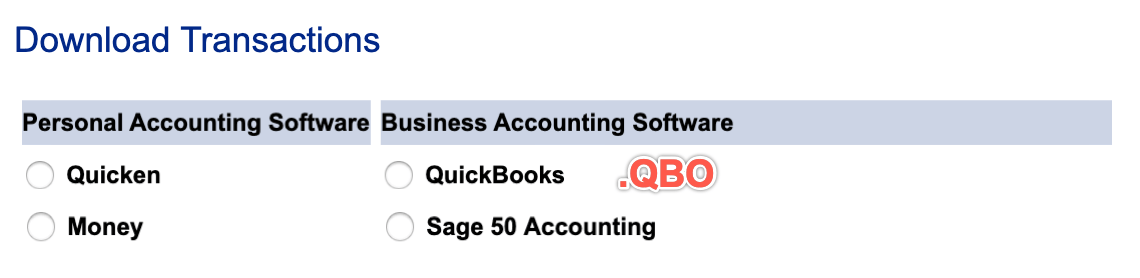
What is a QBO file
QBO is OFX with extra fields for QuickBooks, so the date, amount, payee, memo and transaction ID all carry over. Convert it when you need another format for your app or version. Check the account type, and that credit card amounts have the signs you expect.
What is an OFX file
OFX (Open Financial Exchange) is a standard format for bank data. Many accounting apps import it. It holds the date, amount, payee, memo, check number and a transaction ID, along with the account ID and type. More about OFX.
Why convert QBO to OFX
QBO is OFX with extra fields for QuickBooks, so other apps may refuse it. OFX is the most widely accepted bank format, with named fields and a transaction ID on each row, so an app can skip rows it already has.
Before you import: back up Sage Pastel
Back up your company data before you import, and check that the cashbook or bank account exists. Bank Manager doesn't check for duplicates across files, so note which periods you have already imported.
Step by step: convert QBO to OFX
- Download, install and start ProperConvert. The trial is free.
- Open your QBO file.
- Review the transactions to see how the app read your file. Check that the dates are correct, and that expenses are negative and deposits (payments to the account) are positive. The "Change +/-" button reverses the signs for the whole file, for bank and credit card accounts alike.
- Set the OFX settings below.
- Click Convert, then confirm the file name and location.
Set the OFX output settings
In the QBO/QFX/OFX tab on the right sidebar, set the file type to OFX and select OFX PASTEL as the OFX target, then set:
- Account ID: digits only. Use the same number for every file of one account and a different number for each account.
- Account type: adjust it when you switch accounts.
- Currency: ZAR for a South African account.
See all OFX settings.
Import the OFX file into Sage Pastel
Statements go into Sage Pastel through the Bank Manager module. Its options differ between versions, so the screens in yours may look different.
- Open Bank Manager and select the cashbook or bank account.
- Select the OFX file and import it.
- Check how the lines were matched to ledger accounts, then process them into the cashbook.
- Compare the result to the statement's closing balance.
See the Sage Pastel guide for the settings that matter.
Sage Pastel OFX questions
Why does Bank Manager show every line as unmatched?
Matching runs on keywords in the description. A file whose descriptions are truncated or replaced by the bank's transaction code gives the rules nothing to match. Keep the full description and the customer reference in the file.
Why are all amounts reversed?
Some statements mark credits with Cr and print debits without a sign. If that isn't turned into a minus on debits, money out appears as money in. Reconcile the first import to the statement closing balance before mapping anything.
Can I import an older period?
Yes. Bank Manager accepts any date range in the file. Import periods in order and don't overlap them, because it doesn't check for duplicates across files.
Does this apply to Sage Business Cloud Accounting?
Mostly. The online product imports OFX through Banking rather than through Bank Manager. In ProperConvert, select the Sage Online OFX target for it.