Import PDF into Xero: convert PDF to OFX
Xero imports OFX files. Convert your PDF file to OFX first, then import it. Read the full Xero import guide.
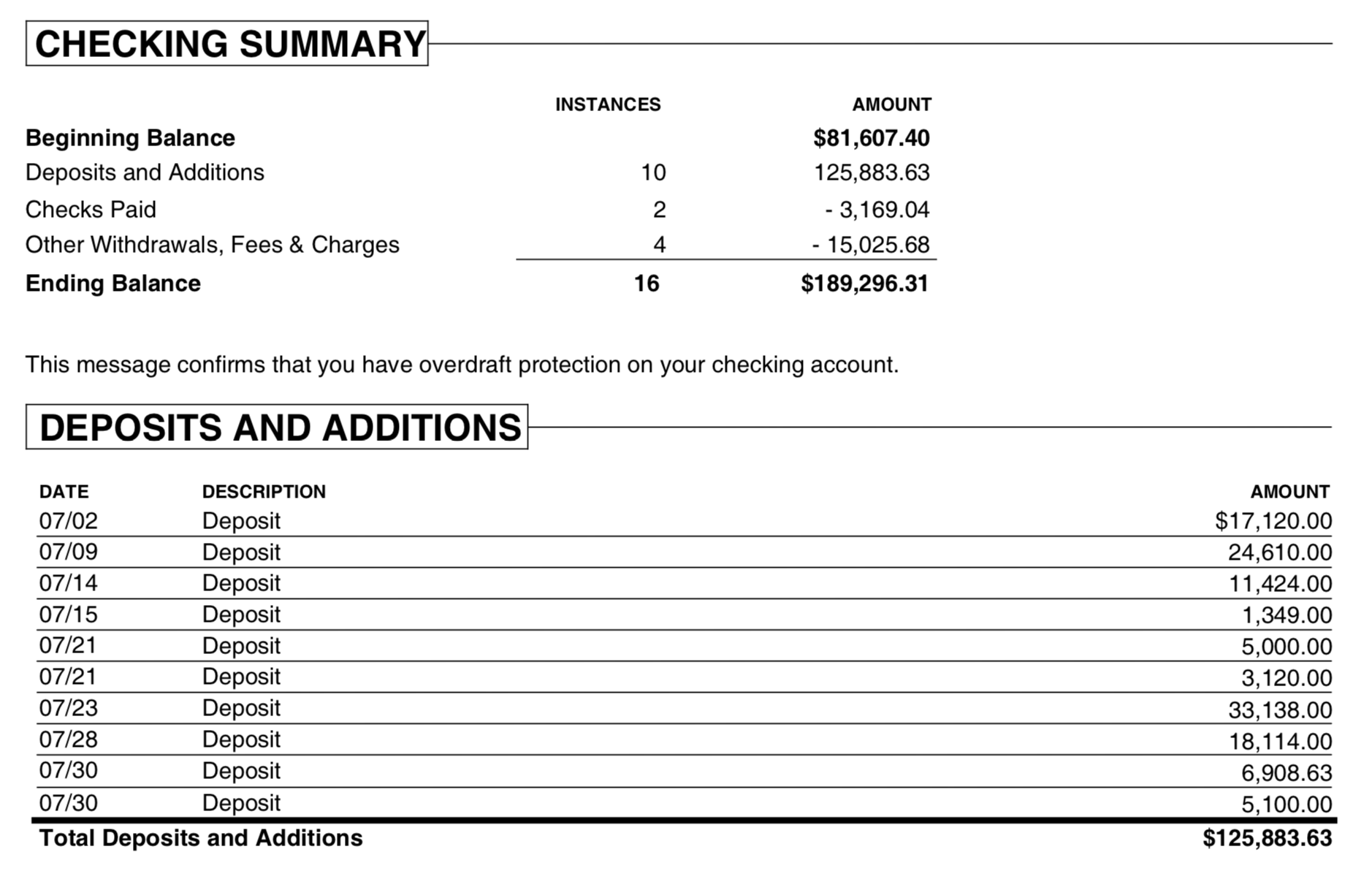
What is a PDF statement
A PDF shows transactions for reading, not for importing, so every row has to be extracted from the page layout. Before you convert, check that rows split across two pages are complete, that statements crossing a new year have the right year, and that the total matches the closing balance. A scanned statement is read with OCR, so check its amounts more closely.
What is an OFX file
OFX (Open Financial Exchange) is a standard format for bank data. Many accounting apps import it. It holds the date, amount, payee, memo, check number and a transaction ID, along with the account ID and type. More about OFX.
Why convert PDF to OFX
A PDF shows a statement to people, but accounting apps can't read its table of transactions. OFX is the most widely accepted bank format, with named fields and a transaction ID on each row, so an app can skip rows it already has.
Before you import: check the account in Xero
Xero keeps your data online, so there is no company file to back up. Check that the bank or credit card account exists under Accounting > Bank accounts, and look at what is already imported for this period so you don't bring in the same transactions twice.
Step by step: convert PDF to OFX
- Download, install and start ProperConvert. The trial is free.
- Open your PDF file.
- Review the transactions to see how the app read your file. Check that the dates are correct, and that expenses are negative and deposits (payments to the account) are positive. The "Change +/-" button reverses the signs for the whole file, for bank and credit card accounts alike.
- Set the OFX settings below.
- Click Convert, then confirm the file name and location.
Set the OFX output settings
In the QBO/QFX/OFX tab on the right sidebar, set the file type to OFX and choose the OFX target for your app, then set:
- Account ID: digits only. Use the same number for every file of one account and a different number for each account.
- Account type: adjust it when you switch accounts.
- Currency, Bank ID and Branch ID: some apps check these and refuse a file that doesn't match, so set them to match your app. See all OFX settings.
Import the OFX file into Xero
- In Xero, click Accounting, then Bank accounts.
- Select the bank or credit card account to import into.
- Click Manually import a statement, or click Manage Account and then Import a Statement.
- Under Upload a bank file, click Browse, select the OFX file, and click Import.
- Review the transactions and reconcile them.
See the Xero import guide for more.
Xero OFX questions
Should I import OFX or CSV into Xero?
OFX. It carries the payee, description, reference and check number in separate fields and gives Xero a transaction ID for duplicate checks. CSV is fine when the file was written for Xero with the right column names; a bank's own CSV usually needs mapping and cleanup.
Xero says my OFX, QFX or QBO file is invalid. What is wrong?
Most often the file has a header Xero does not read, non-UTF-8 text, dates in a format it does not accept, or a missing transaction ID. Convert the file to plain OFX and import that. Renaming QBO or QFX to .ofx helps only when the content is already clean.
Why did Xero import only some of the transactions?
Xero skips lines whose transaction ID it already has, and for CSV it skips lines it reads as duplicates by date, amount and description. Two genuine identical lines on the same day can be dropped from a CSV. Use OFX with unique IDs for those.
How do I undo an import?
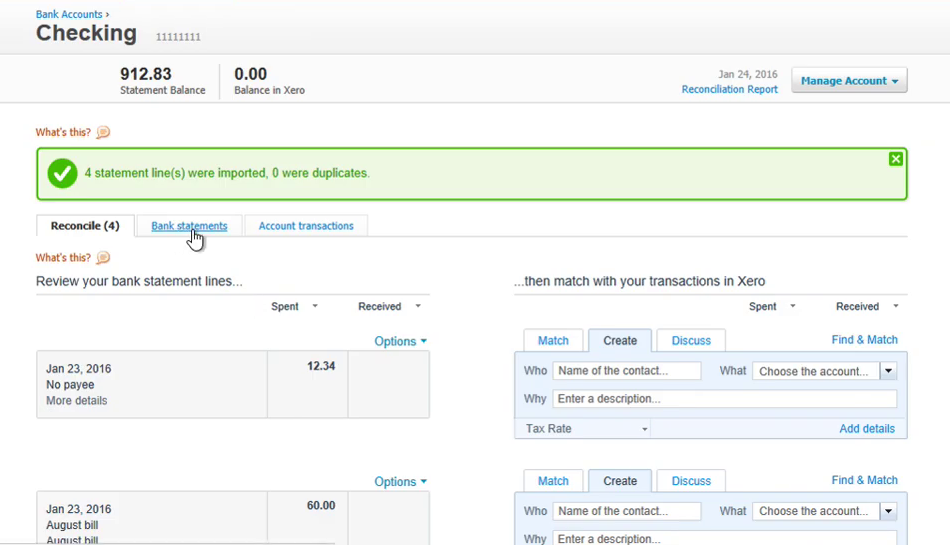
Open the bank account, go to the statement lines or Bank Statements tab, select the imported statement and delete it. The lines disappear from reconcile and the file can be imported again.
Can I import older periods into Xero?
Yes. There is no date limit on file imports. Import periods in order and do not overlap them, so the balance in Xero follows the statements.
Does Xero read the opening balance from the file?
No. The statement balance in Xero is computed from the imported lines. Compare it to the printed closing balance after each import. If they differ, a line is missing, doubled, or has the wrong sign.