Convert QFX to QFX for Quicken
Rewrite your QFX file with settings suited to Quicken, or clean transaction details before importing. Check the original rejection message and review the new file; reconversion does not fix every import problem. Read the full Quicken guide.

What is a QFX file
QFX is OFX with extra fields for Quicken, so the date, amount, payee, memo and transaction ID all carry over. Sometimes renaming a .qfx file to .qbo is enough for QuickBooks to accept it. Convert when that fails, or when you need to change the account details inside the file.
What is a QFX file
QFX is the Web Connect format Quicken uses for bank and credit card downloads. It is OFX with extra fields for Quicken, and it holds the date, amount, payee, memo, check number and a transaction ID. More about QFX.
Why convert QFX to QFX again
Quicken may reject a QFX file because its bank label, account type, Account ID or currency does not fit the destination account. Rewriting it with the appropriate Quicken target lets you review those settings and the account activity before trying the import again.
You can also clean payees and memos while preparing the file. A new QFX file does not guarantee that Quicken will accept an unsupported account or bank label. Keep account and transaction identifiers consistent; do not change them simply to get around duplicate detection. Compare the imported transactions with the original account activity.
Review transaction changes before importing
Use Rules to clean payee names, change memo text or assign categories in the transaction preview. For example, turn a long payment reference into the vendor name you use in your books. What the destination receives depends on its import format: a category shown in ProperConvert is not a promise that every importer will use it. Keep the original file, compare dates and amounts, and avoid importing the same transactions twice.
QFX reconversion questions
What should I check when Quicken rejects the original QFX?
Read the error, then check the allowed bank label, account type, account identifier and currency for the Quicken edition and destination account. Choose the matching QFX target before converting.
Does rewriting QFX carry my categories into Quicken?
Do not rely on QFX for category or split transfer. Use the destination's review and categorization workflow, or a suitable alternative output if those details are required.
Can rewriting bypass Quicken import restrictions?
No. Rewriting can address supported format and account-setting differences; it does not remove the application's own eligibility or account restrictions.
Before you import: back up Quicken
Back up your Quicken data file before you import any file, so you can restore it if the transactions come in wrong.
Step by step: convert QFX to QFX again
- Start the latest ProperConvert in Transactions mode and keep the original file for reference.
- Open your QFX file. Review the account, dates, signed amounts and transaction count before changing anything.
- Use Rules when you need to clean payees or memo text, or assign categories. Check the changed preview. The output layout and importer decide which details can be transferred; review categories and splits separately.
- Choose the QFX target for your Quicken edition. Check the allowed bank label, account type, Account ID and currency. Keep the account identity consistent with previous files.
- Read the output settings below, then click Convert and save under a new name so the original is retained.
- Follow the destination import steps below, review the result and compare counts and amounts. Avoid overlapping imports; a rewritten file can still contain transactions already imported.
If the original was rejected, use its actual error to check the settings or source data. Rewriting can address supported format differences, but does not guarantee acceptance or remove the accounting app's own restrictions.
Set the QFX output settings
In the QBO/QFX/OFX tab on the right sidebar, set the file type to QFX (Quicken), then set:
- Account ID: digits only. Use the same number for every file of one account and a different number for each account.
- Account type: Quicken imports a credit card file only into a credit card account, and a checking file only into a bank account.
- Currency: US dollars for the Quicken US edition, US or Canadian dollars for the Canadian edition.
- INTU.BID: the bank label Quicken shows during import. It doesn't have to match your bank, but it must be allowed for the account type. Click Lookup: "CH" is for checking, savings and credit lines, "CC" is for credit cards, and "CH,CC" is for both. See all QFX settings.
Import the QFX file into Quicken
Quicken imports QFX files only in versions up to three years old, and needs an Internet connection during the import. For an older version, use QIF.
In Quicken for Windows:
- Disconnect the account from online services. Click Tools > Account List, click Edit on the account, open the Online Services tab, and click Deactivate.
- Click File > File Import > Web Connect (.QFX) File and select the QFX file.
- Choose "Link to an existing account" and pick the account, or choose "Create a new account". Click Import, then Close.
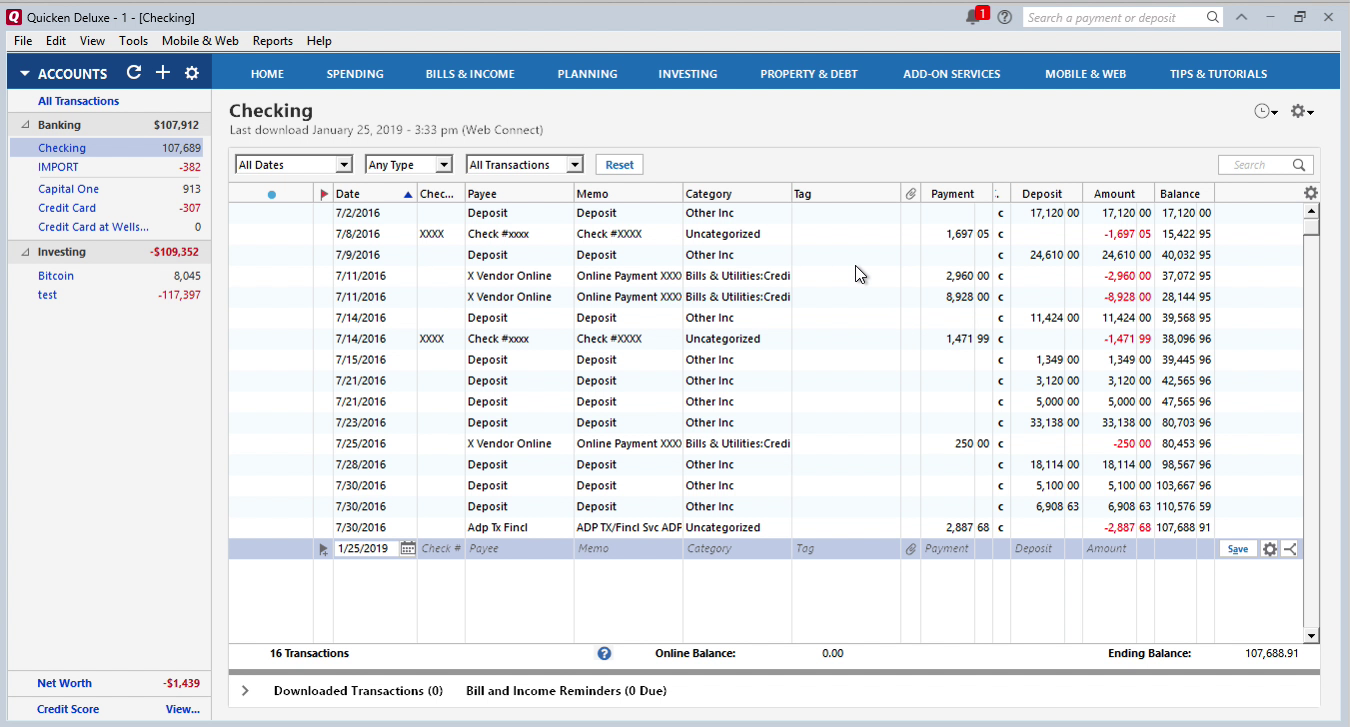
- The transactions appear in the bottom section of the register. Review them and click Accept All.
In Quicken for Mac, click File > Import > Bank or Brokerage File (OFX, QFX) and select the file. See the Quicken import guide for every step.
Quicken QFX questions
Why won't Quicken import a QFX file into my account?
The first QFX import "online links" the account to the bank settings in that file. A QFX file with different settings is then refused for the "occupied" account. Edit the account, open the Online Services tab, and select Deactivate online link, then import again.
Why doesn't Quicken see my QFX file?
The import was started from File > Import > QXF file. QFX files are Web Connect files: use File > File Import > Web Connect File.
Can I import QFX into a non-USD account?
Not safely. Quicken refuses a QFX file in a non-USD currency, and since Quicken 2016 R7 (US edition), importing a USD QFX file into a non-USD account changes the account's currency to USD, which cannot be changed back. Two workarounds:
- Import the QFX file into a USD proxy account, then select all transactions there (right-click > Select all transactions), cut them, switch to the intended account and paste. Amounts stay the same.
- Use QIF, which has no currency.
Why does Quicken say the file is not a valid QFX?
Either the Quicken version is discontinued and no longer accepts QFX, or the financial institution ID in the file is not one Quicken recognizes. Switch to QIF in the first case and choose a listed institution in the second.
Why did Quicken create a new account?
The account ID in the QFX file does not match the one Quicken stored for the existing account. Use the same account ID as the previous import.
Why are transactions doubled after import?
The same period was imported twice with different transaction IDs, or as QIF, which has no IDs and no duplicate check. Import each period once. For QIF, delete the doubled rows in the register.
Related Quicken conversions
- Import PDF into Quicken: convert PDF to QFX
- Quicken: convert CSV or Excel to QFX
- Import OFX into Quicken: convert OFX to QFX
- Import QFX into Quicken: convert QFX to QIF
- Import QFX into Quicken: convert QFX to CSV
- Import QBO into Quicken: convert QBO to QFX
- Import QIF into Quicken: convert QIF to QFX
- Import MT940 into Quicken: convert MT940 to QFX
- Import IIF into Quicken: convert IIF to QFX