Import OFX into Banktivity: convert OFX to QIF
Banktivity imports QIF files. Convert your OFX file to QIF first, then import it. Read the full Banktivity import guide.

What is an OFX file
OFX is a standard format for bank data. It carries the date, signed amount, payee, optional memo and check number, a transaction ID, and the account type and ID. Those details carry over, so there is little to fix. Check the account type and that the IDs stay the same between files for the same account, because apps use them to detect duplicates.
What is a QIF file
QIF is an older plain text format for transactions, with a line for each date, amount, payee, memo, check number and category. It has no transaction IDs and no currency. More about QIF.
Why convert OFX to QIF
An OFX file has the right data, but not every app accepts it. QIF is a plain text format that apps without OFX support often import, and it can carry categories. It has no transaction IDs, so import each period only once.
Before you import: back up Banktivity
Back up your Banktivity data before you import, so you can restore it if the transactions come in wrong.
Step by step: convert OFX to QIF
- Download, install and start ProperConvert. The trial is free.
- Open your OFX file.
- Review the transactions to see how the app read your file. Check that the dates are correct, and that expenses are negative and deposits (payments to the account) are positive. The "Change +/-" button reverses the signs for the whole file, for bank and credit card accounts alike.
- Set the QIF settings below.
- Click Convert, then confirm the file name and location.
Set the QIF output settings
In the QIF tab on the right sidebar, set:
- QIF target: Banktivity.
- Account type: Bank for checking and savings, CCard for credit cards.
- Account name: exactly as it appears in Banktivity. If no account with that name exists, Banktivity creates a new one.
See all QIF settings.
Import the QIF file into Banktivity
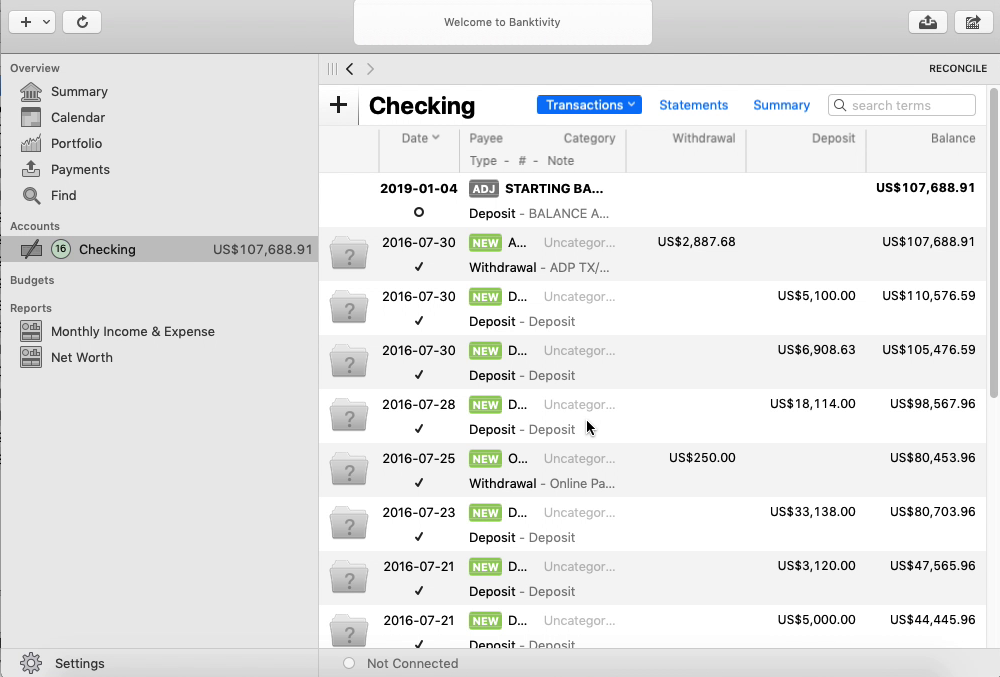
- Select File, then Import Transactions.
- Click Import File and select the QIF file.
- Select the account from the QIF file to import.
- Click Continue.
- Review the transactions, then categorize or delete them as needed.
See the Banktivity import guide for more.
Banktivity QIF questions
Which account do the transactions go into?
Banktivity imports straight into the account named in the QIF file, without asking. If no account with that name exists, Banktivity creates a new one.