Convert QBO to QBO for QuickBooks Desktop
Rewrite your QBO file with settings suited to QuickBooks Desktop, or clean transaction details before importing. Check the original rejection message and review the new file; reconversion does not fix every import problem. Read the full QuickBooks Desktop guide.

What is a QBO file
QBO is OFX with extra fields for QuickBooks, so the date, amount, payee, memo and transaction ID all carry over. Convert it when you need another format for your app or version. Check the account type, and that credit card amounts have the signs you expect.
What is a QBO file
QBO is the Web Connect format that QuickBooks Desktop uses to import bank transactions. It has a fixed structure that QuickBooks expects, with fields for the date, amount, payee, memo, check number and a transaction ID. More about QBO.
Why convert QBO to QBO again
A QBO file can be valid text yet fail a QuickBooks import because its account type, Account ID, currency or bank identifier does not match the destination's requirements. Open it in ProperConvert, check the transactions, then rewrite it using the QuickBooks Desktop output settings below. For Desktop Web Connect, check the allowed bank label as well as the account details.
Reconversion can also clean payees and memos before review in QuickBooks. It does not restore Web Connect eligibility to a discontinued Desktop version, recreate invoices or journal entries, or guarantee that every rejected file will import. Keep account and transaction identifiers consistent and check what QuickBooks has already imported.
Review transaction changes before importing
Use Rules to clean payee names, change memo text or assign categories in the transaction preview. For example, turn a long payment reference into the vendor name you use in your books. What the destination receives depends on its import format: a category shown in ProperConvert is not a promise that every importer will use it. Keep the original file, compare dates and amounts, and avoid importing the same transactions twice.
QBO reconversion questions
Will converting QBO to QBO make an old QuickBooks version accept Web Connect?
No. Rewriting the file does not restore services that the QuickBooks version no longer supports. Use an import method appropriate for that version.
Does QBO import my assigned expense categories?
QBO bank import does not transfer your expense-account categorization. Review and categorize the transactions in QuickBooks after import; use an appropriate output when you need accounting entries with named expense accounts.
Can I rewrite a QBO file just to clean payees?
Yes. Review the transactions, use Rules to clean the payees or memos, then write a new QBO file using the correct account settings. Check the import result and avoid reimporting transactions already present.
Before you import: back up QuickBooks
Back up your QuickBooks company file before you import any file, so you can restore it if something comes in wrong. On Windows, click File > Back Up Company > Create Local Backup. On a Mac, click File > Back Up, then Start Backup.
Step by step: convert QBO to QBO again
- Start the latest ProperConvert in Transactions mode and keep the original file for reference.
- Open your QBO file. Review the account, dates, signed amounts and transaction count before changing anything.
- Use Rules when you need to clean payees or memo text, or assign categories. Check the changed preview. The output layout and importer decide which details can be transferred; review categories and splits separately.
- Choose the QBO target for QuickBooks Desktop. Check the Account ID, account type and currency. For Desktop Web Connect, check the allowed bank label too; use the destination-specific settings below.
- Read the output settings below, then click Convert and save under a new name so the original is retained.
- Follow the destination import steps below, review the result and compare counts and amounts. Avoid overlapping imports; a rewritten file can still contain transactions already imported.
If the original was rejected, use its actual error to check the settings or source data. Rewriting can address supported format differences, but does not guarantee acceptance or remove the accounting app's own restrictions.
Set the QBO output settings
In the QBO/QFX/OFX tab on the right sidebar, set the file type to QBO, then set:
- Account ID: digits only. Use the same ID for every file of one account and a different ID for each account. The real account number is the easiest choice. See QBO files for multiple accounts.
- Account type: checking, savings or credit card. It must match the account you import into.
- Currency: must be USD for the QuickBooks Desktop US edition, USD or CAD for the Canadian edition.
- INTU.BID: must be a bank label QuickBooks allows for this account type. Click Lookup to pick one, or use any allowed value if your bank isn't listed. See INTU.BID.
QBO has no expense or income account. You assign those in QuickBooks after the import. See all QBO settings and the QBO format.
Import the QBO file into QuickBooks Desktop
QuickBooks imports QBO files only in versions up to about three years old. For an older version, use IIF.
On Windows:
- If the account shows a lightning bolt icon in the Chart of Accounts, it is connected to online banking. Right-click it, choose Edit Account, click Bank Feed Settings, and choose Deactivate All Online Services.
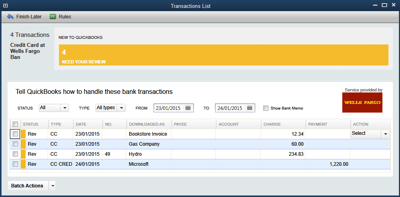
- Click File > Utilities > Import > Web Connect Files and open the QBO file.
- Select Use an existing QuickBooks account, choose the account, and click Continue.
- Open Banking > Bank Feeds > Bank Feeds Center, choose a payee and an expense or income account for each transaction, and click Add/Approve.
On a Mac, turn off the account's online settings, click File > Import > From Web Connect, choose the account, then match each transaction and add it.
Importing the same period twice can create duplicates. If QuickBooks shows an error, see QuickBooks import errors.
QuickBooks Desktop QBO questions
Do I need to match the bank name in the QBO file to my actual bank?
No. The INTU.BID value in the QBO file sets the bank label QuickBooks shows during import. It does not need to match your real bank. If your bank is not in the list, use any allowed value. The transactions will import correctly regardless.
Why does QuickBooks show a yellow icon on my account before importing?
The yellow icon means the account is connected to online banking (direct download). QuickBooks does not allow QBO file imports into a connected account. You need to disconnect the account from online services first, then import the QBO file.
How is a QBO file different from an OFX file?
QBO and OFX use the same base format. QBO files include an extra field (INTU.BID) that QuickBooks uses to identify the bank. For most purposes they are interchangeable, but QuickBooks Desktop expects the QBO variant for Web Connect imports.
Why does QuickBooks say my bank does not support Web Connect?
The bank ID in the QBO file is not one QuickBooks recognizes. A converter sets the bank ID from its own list. Choose a listed bank, or use an ID that QuickBooks accepted before.
Why did QuickBooks create a new account instead of using mine?
The account ID in the file does not match the ID QuickBooks stored for the existing account. Use the same account ID as the last successful import, or connect the file to the existing account when QuickBooks asks.
Why are transactions missing or doubled after import?
QuickBooks skips rows whose transaction ID it has seen before. Missing rows usually mean repeated IDs in the file. Doubled rows usually mean a statement that was already imported with different IDs. Both are fixed by importing each period once, with IDs that stay the same for the same transaction.
Related QuickBooks Desktop conversions
- Import PDF into QuickBooks Desktop: convert PDF to QBO
- QuickBooks Desktop: convert CSV or Excel to QBO
- Import OFX into QuickBooks Desktop: convert OFX to QBO
- Import QFX into QuickBooks Desktop: convert QFX to QBO
- Import QBO into QuickBooks Desktop: convert QBO to IIF
- Import QIF into QuickBooks Desktop: convert QIF to QBO
- QuickBooks Desktop: convert MT940 to QBO
- Import IIF into QuickBooks Desktop: convert IIF to QBO